Change your Password
First thing to do after you logged into Pocket Business for the first time is to update your password from the temp password that was created for you to a new password.
About
Last Updated : 8 February 2023
Available : All Packages
Step 1
1. Login
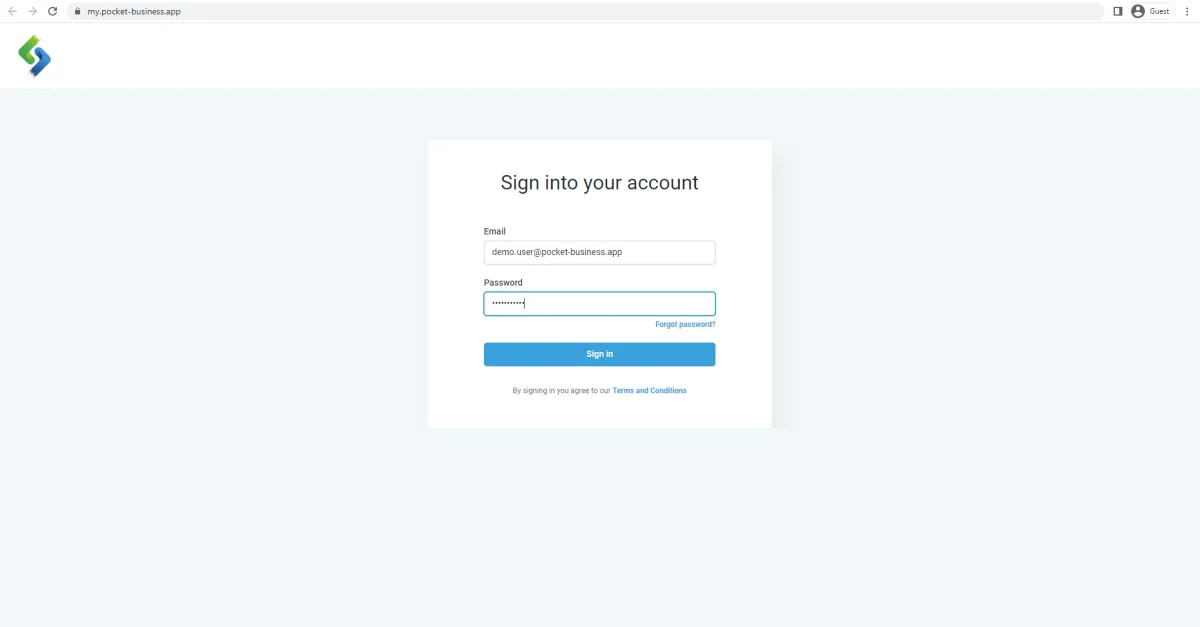
If you haven't logged in yet, visit my.pocket-business.app and log in using the details provided to you in an email.
2. Verify your Account
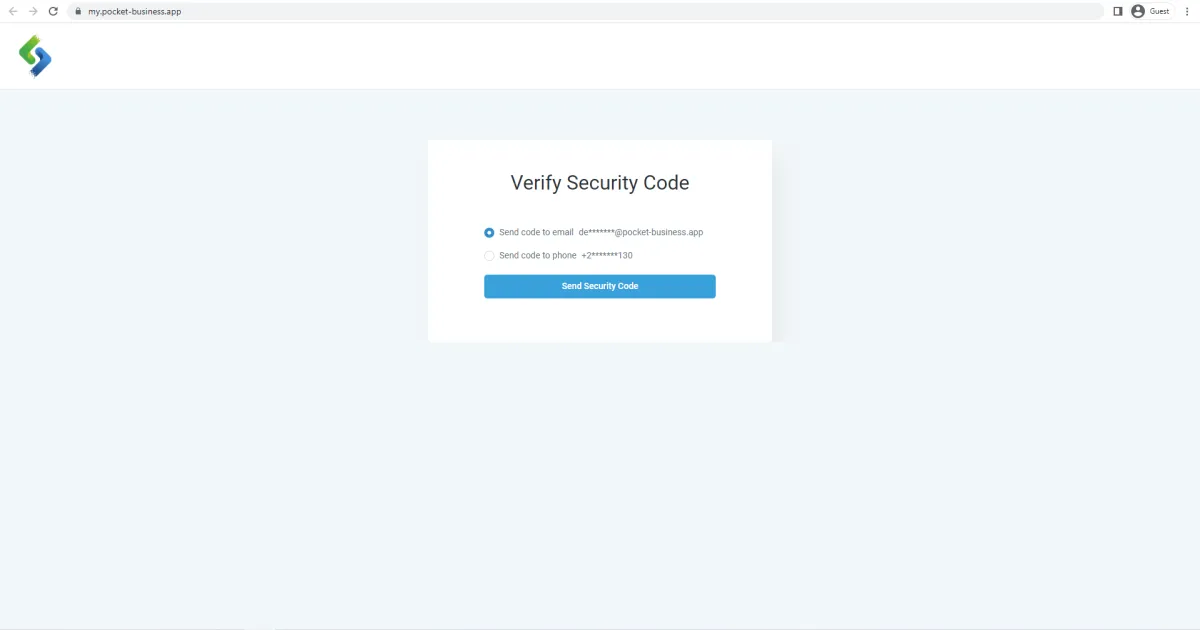
To verify your identity and secure your account, after your initial login, you will need to confirm that you are the user of this account. This can be done either by requesting an email containing a secure code or by receiving a code via SMS.
3. Enter the Security Code
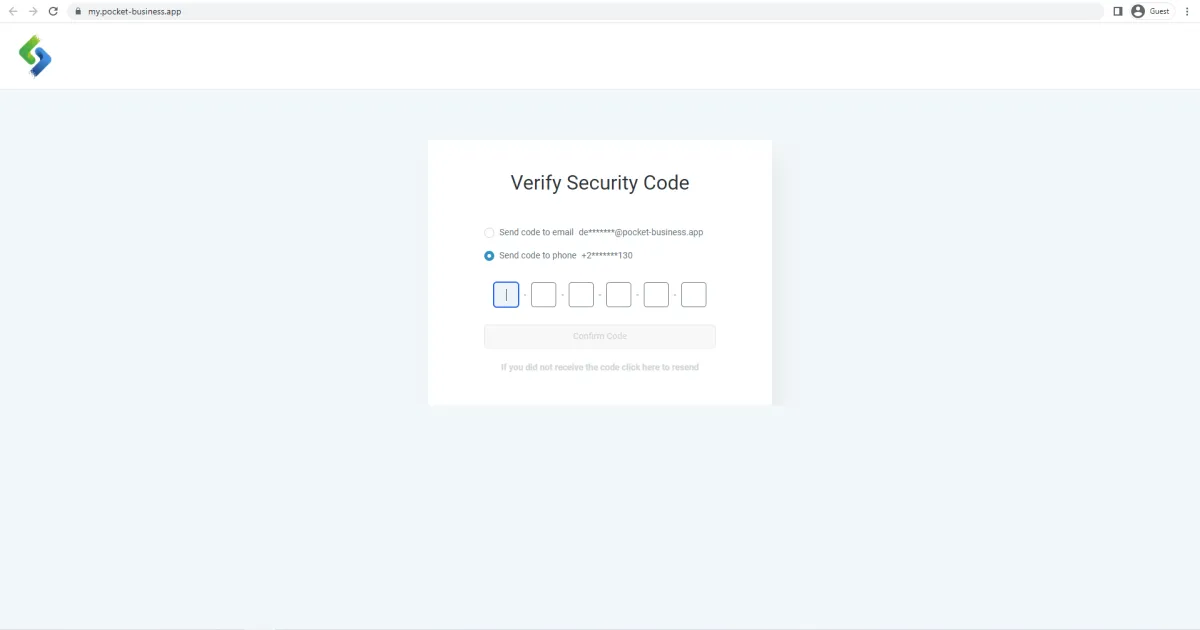
Once you receive the code, simply enter it and click the "Confirm Code" button to complete the verification process.
Step 2
1. Settings
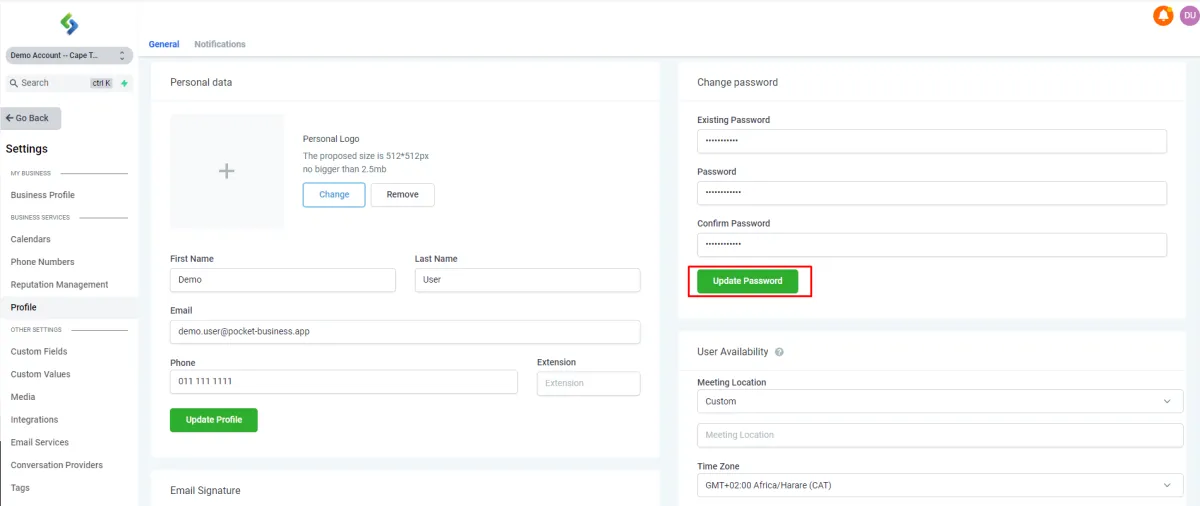
To change your password, navigate to the "Settings" section, located at the bottom left corner within Pocket-Business.

2. Profile
Under the "Settings" section, find the "Profile" option in the left menu. Please note that the appearance of the menu may vary depending on your package with us.
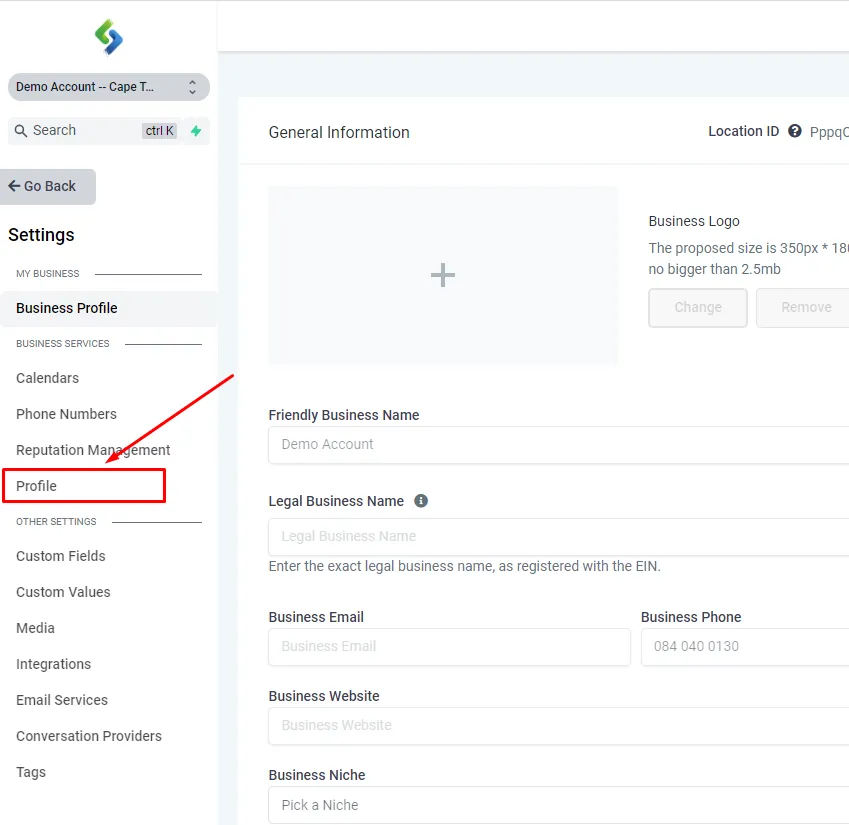
3. Change Password
Within the "Profile" page, locate the "Change Password" section on the right side.
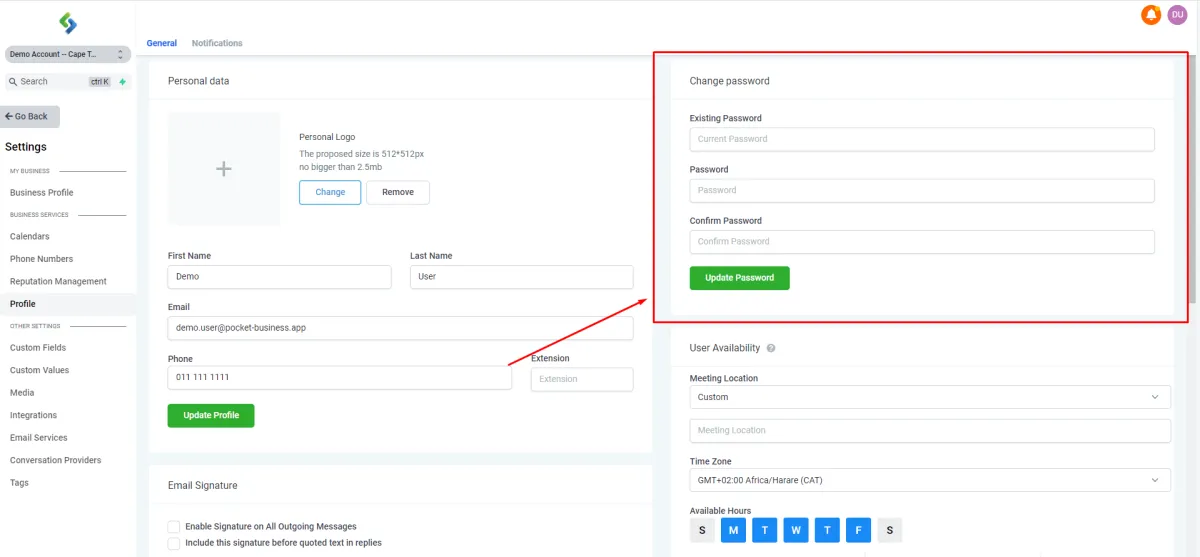
4. Confirm Password
In the "Change Password" section, enter your current password, followed by your desired new password. Re-enter the new password to confirm and then click the "Update Password" button